Dual booting Windows 98 and 2000

Tried to dual boot Windows 98 and 2000 on VirtualBox 7.1.10, and appearntly it cant even boot up Windows 2000 due to an issue with Win2000 and the setup, it keeps popping up the disk checking thingy and keeps restarting Setup, either Windows 2000 doesnt want to dualboot with Win98, who knows, so here are the screenshots.
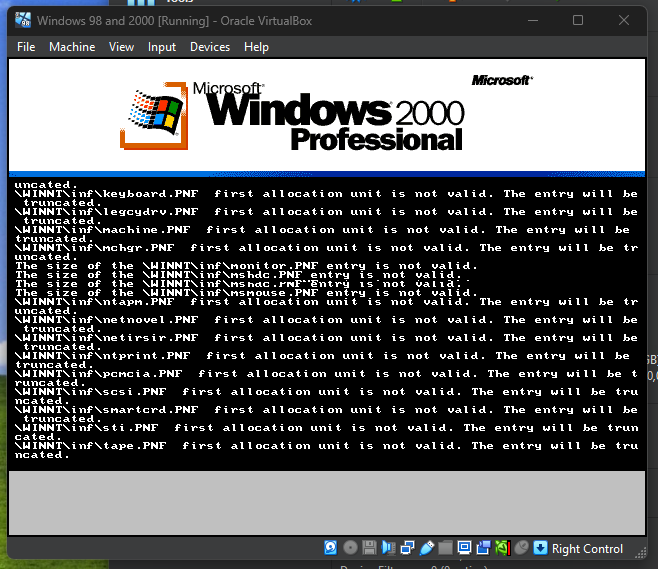
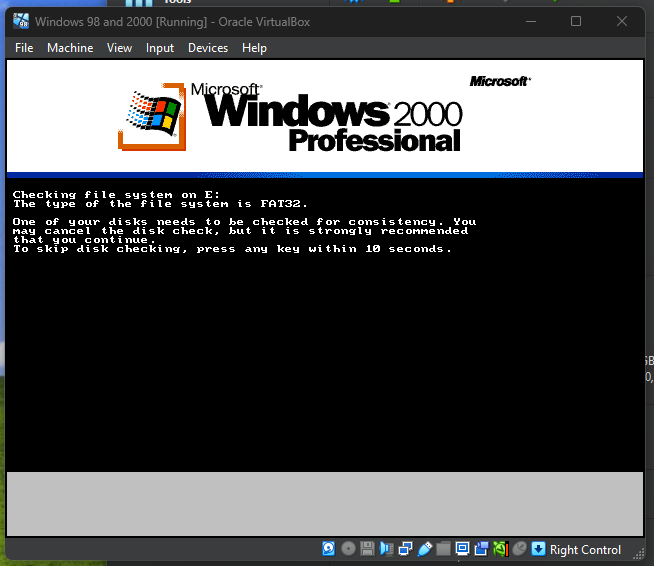
Even if I put the Windows 2000 ISO back, it will do the GUI part of the setup all over again
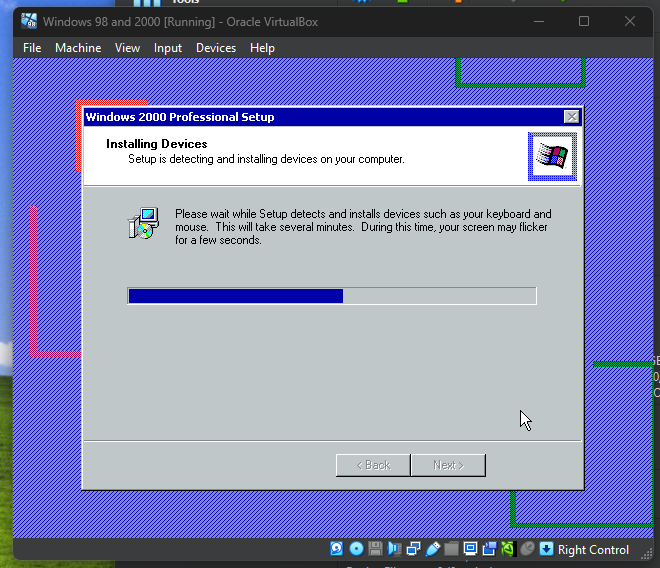
Even if I put the Windows 2000 ISO back, it will do the GUI part of the setup all over again
Comments
It would be helpful if you could provide some more info:
1) In which order did you try to install the operating systems?
I'm pretty sure you must install 98 first and then 2000. In general, if you want to multiboot, you should always install the OSs in chronological order.
2) How big are your partitions?
Windows 2000 by default can only address partitions of up to 137 gigabytes, because 48-bit LBA is only available from SP3 onward and disabled by default.
If you could give a brief step-by-step summary of what you did to get to where you are now, that would also be helpful.
2. Windows 98 SE was 8GB and Windows 2000 was 10GB, both in FAT partition, because if Windows 2000 was formatted to NTFS, there could be an issue with dualbooting.
Again, it would be helpful if you could provide a brief step-by-step summary of what you did.
Here's how I went about it (non-default options are highlighted in bold). Maybe you see something you did differently.
1. Windows 98 SE Setup
- Boot from the Windows 98 SE bootdisk and select "Start Computer With CD-ROM support"*
- Enter "
- When FDISK asks if you want to enable large disk support, answer "Y"
- On the FDISK title screen (FDISK Options), choose "1. Create DOS partition or Logical DOS Drive"
- On the following screen, choose "1. Create Primary DOS Partition"
- When it asks you if you "wish to use the maximum available size for a Primary DOS Partition and make the partition active", answer "N" (you don't want the Win98 partition to cover the entire hard drive, after all)
- On the next screen, enter the desired Win98 partition size (8192 MB in your case).
- Once the Primary DOS Partition is created, press ESC to return to the FDISK title screen.
- On the FDISK title screen, select "2. Set active partition"
- On the next screen, select the partition you just created (so 1).
- Once the partition is set active, Press ESC three times to leave FDISK and then restart the VM.
- After restarting, once again select "Start Computer With CD-ROM support"* (this time, CD-ROM support is necessary).
- Enter the command "
- Confirm that you want to format with "Y"
- Optionally enter a volume label
- Launch the Windows 98 graphical setup from CD-ROM with "
- Finish the first portion of the Windows 98 graphical setup (the one with the Windows-3.1-style UI). If Windows 98 boots fine on your VM, then you can skip this next subsection. However, if after the restart (when the setup has a Windows-95-style UI) you get errors like "
- Download the latest release of the Patcher9x bootdisk and insert it when setup asks you to restart.
- Restart the VM, which will now boot from the Patcher9x disk.
- On the Patcher9x boot screen, select the default option of "1 - FreeDOS EMS/XMS with CD-ROM"*
- Once you're in the FreeDOS prompt, enter "patch9x" like it tells you to.
- If you installed Windows 98 to the default directory, you can just press enter when it asks you for the path. Otherwise, type your Windows 98 system directory path.
- On the next set of options, select option "2: patch files, VMM32.VXD or equivalent will be patched directly [default]" (or just press enter without selecting an option).
- When it lists the detected files and asks you "Apply patch/patches?", answer "Y".
- Once the patch was applied successfully, you press enter to return to the FreeDOS prompt, remove the Patcher9x disk image and restart the VM.
- Proceed with the rest of the Windows 98 graphical setup as usual.
*Technically you don't need CD-ROM support here, but it shouldn't cause any problems.fdisk" and create a partition in the following way:format c:"d:\setup". If your CD-ROM drive has a different drive letter, you will, of course, have to substitute that.Explorer has performed an illegal operation" or "The SHELL32.DLL file is linked to missing export SHLWAPI.DLL:tFileAttributesA", then the following subsection will help you fix that:2. Windows 2000 Setup
- Boot from the Windows 2000 CD-ROM.
- Get to the partitioning part.
- Select the "Unpartitioned space" to install Windows 2000 to.
- If you insist on using the FAT32 file system for Windows 2000, then select it when asked.**
- When setup tells you that the partition is larger than 2048 megabytes, confirm that you want to use FAT32.
- Proceed with the rest of Windows 2000 setup as normal.
**Using NTFS for Windows 2000 poses no obstacle to dual-booting with Windows 98. What matters for installing them side-by-side is that Windows 2000 can see 98, not the other way around. However, if you want to access the Windows 2000 partition from Windows 98, then using FAT32 is more convenient.Once Windows 2000 setup is finished, your VM should have a boot menu that lets you choose between "Microsoft Windows" (Windows 98) and "Microsoft Windows 2000 Professional".